Setup Guide
Solid Bundles creates fixed bundles and quantity breaks that stay correct all the way through your operations: the order your warehouse sees contains the real component SKUs, prices are right in every market currency, and you can verify all of it with one click before a campaign.
Create your first bundle (2 minutes)
- Open Solid Bundles from your admin's Apps menu.
- Click Create bundle.
- Add products and pick the component variants the bundle contains. Components keep their own SKUs in every order.
- Set a quantity per component and, optionally, a bundle price per unit. Leave the price blank to use the component's normal catalog price.
- Save & sync. The app creates the bundle product on your store, publishes it, and wires everything up.
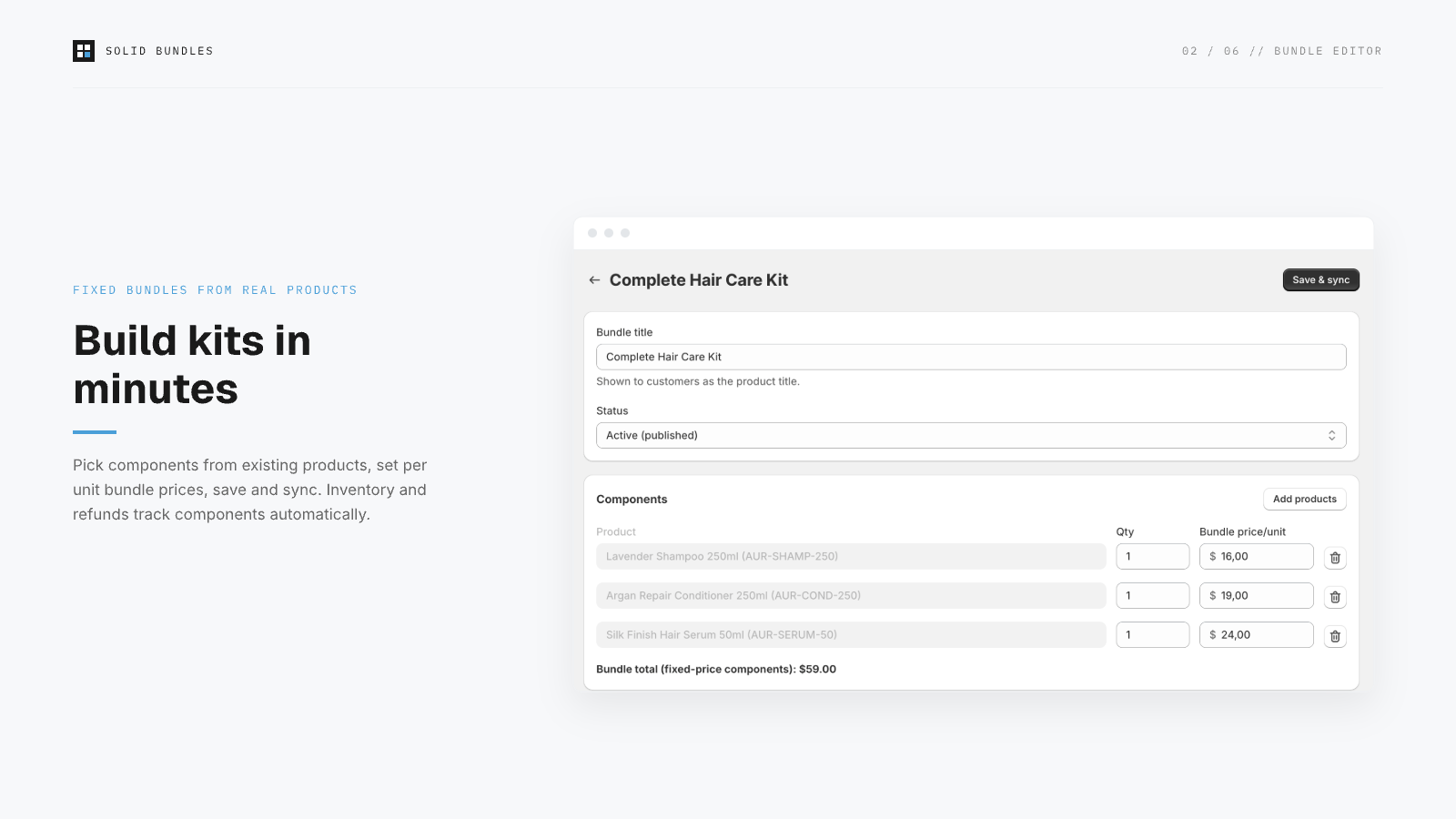
What customers see: a normal product page. What happens at checkout: the bundle expands into its components with your bundle pricing. What your 3PL sees: real SKUs and quantities on the order, nothing to translate, no missing items.
Show bundle contents on the product page
In the theme editor (Online Store → Customize, product template), click Add block → Apps → Bundle contents. The app's setup guide also gives you a one-click Open theme editor link that lands with the block preloaded. The block renders a "What's inside" list with quantities and prices, server-side, with no scripts and no layout shift.
Create quantity breaks
- Click Create quantity breaks.
- Pick the product the discount applies to.
- Add tiers, for example 2+ units at 10% off and 3+ units at 15% off.
- Save & sync. The app creates an automatic discount powered by Shopify Functions.
Add the Quantity breaks block to your product template the same way as above to show the tier table to customers.
Why percentages only? Fixed-amount discounts drift when currencies convert. That's the classic cause of "the discount was wrong at checkout" complaints. Percentages are correct in every currency by definition.
Verify before you promote
App → Verification → Run verification. The app creates real test carts in every market you have enabled and reports what a customer would actually pay: bundle totals, discount percentages, currency conversion, and configuration hazards like duplicate SKUs. Run it before every sale campaign.
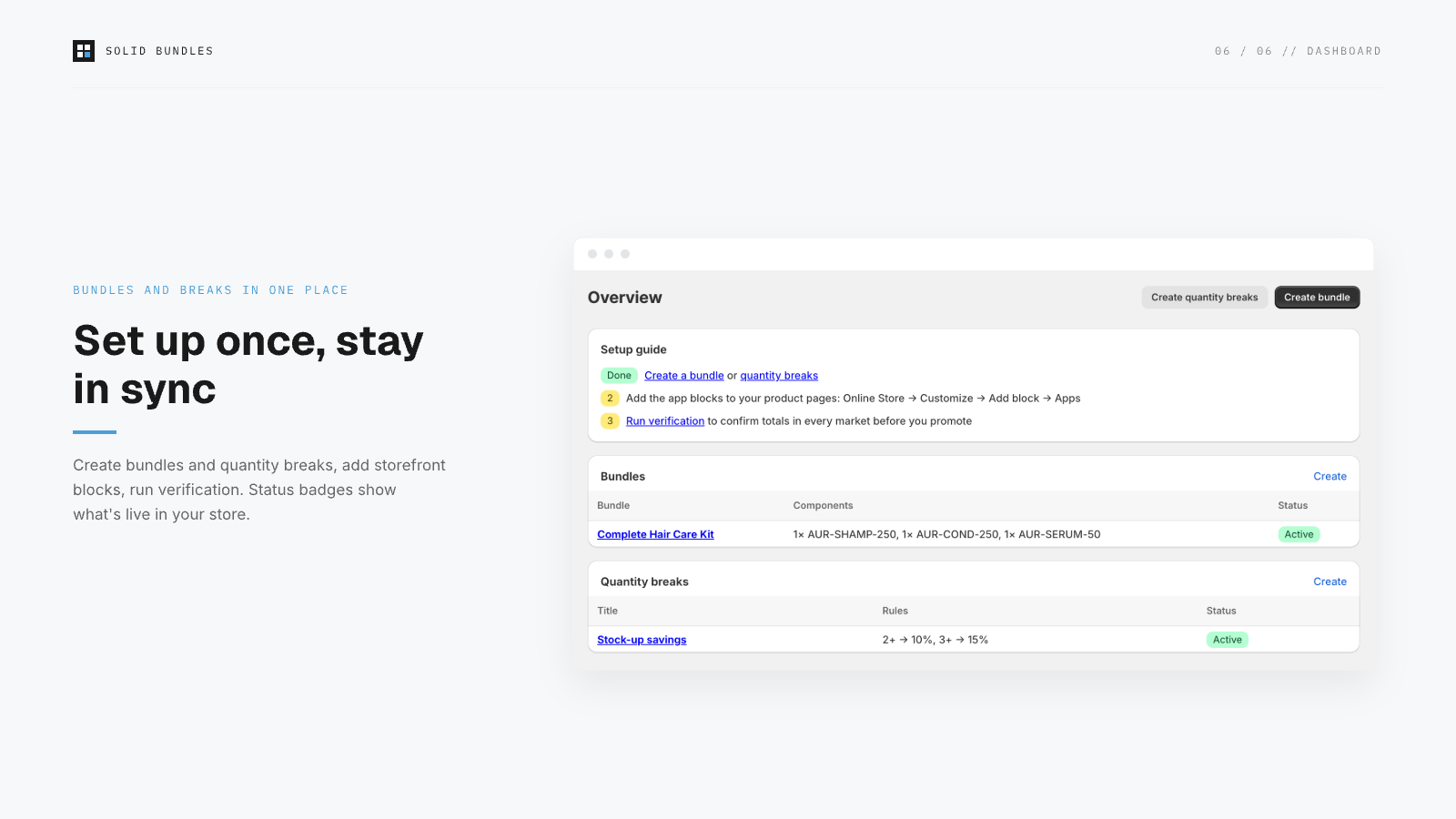
Good to know
- Discount visibility: Solid Bundles discounts appear already in the cart. Shopify's native automatic discounts often appear only at checkout. If you run both, don't be surprised when yours shows earlier.
- Cent rounding: percentage discounts round to the nearest cent per line, so an effective rate can read e.g. 9.95% on low-priced items. The rounding is Shopify's standard checkout behavior and favors consistency with your reports.
- Partial refunds: because components are real order lines, refunds target exactly the component and amount you choose, and bundle context stays attached for your support team.
- Uninstalling: your configuration is kept for 48 hours after uninstall (accidental-uninstall protection), then purged automatically.